Apple Pay Overview
Apple Pay is easy to use and works with the Apple devices you use every day. You can make secure purchases in stores, in apps, and on the web. Apple Pay is even simpler than using your physical card and safer too.
Why Use Apple Pay with D360 Bank?
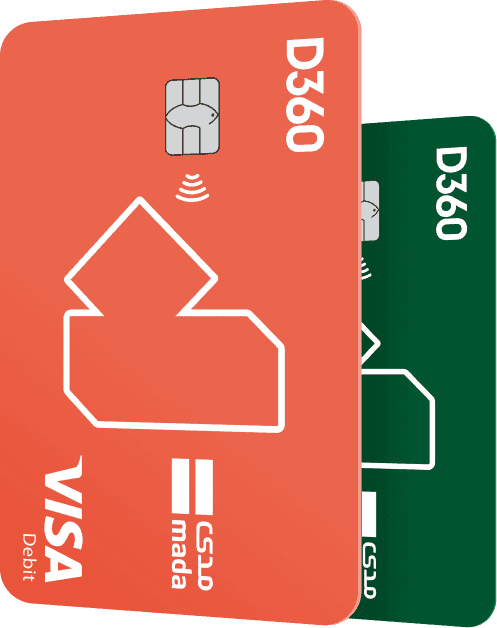
Experience the convenience of Apple Pay with your D360 Bank debit card. It's easy to use and compatible with your everyday Apple devices, allowing you to make secure purchases in stores, apps, and on the web. Apple Pay is simpler and safer than using your physical card.
How Apple Pay Ensures Security
When you make a purchase, Apple Pay uses a device-specific number called a "Device Account Number" and a unique transaction code. Your card number is never stored on your device or on Apple servers, and when you pay, your card numbers are never shared by Apple with merchants. When you pay with your D360 Bank debit card, Apple Pay doesn’t keep transaction information that can be tied back to you.
Find it all in Wallet
Along with your boarding passes and tickets, your D360 Bank debit card is stored in Wallet. Just press the plus sign to add your D360 Bank debit card to your Wallet.
Ride Transit with Apple Pay
Apple Pay is a better way to pay and ride the bus and train with your D360 Bank debit card on iPhone and Apple Watch. Just hold your Apple device near the reader to pay and go—with Express Mode, there’s no need to unlock your device, authenticate with Face ID, Touch ID or passcode, or open any apps.
Features & Benefits
- Quickly pay for transit by holding your Apple device near the contactless reader.
- No need to authenticate with Face ID using Express Mode.
- Use your card even when your iPhone needs a charge with up to five hours of Power Reserve.
- Your card takes full advantage of the privacy and security features built into iPhone and Apple Watch. Your card is stored on the device, which means Apple does not see when you use it—helping keep your data private and secure.
- If you misplace your iPhone or Apple Watch, use the Find My app to lock and help locate the device and suspend your bank card or remotely erase the device and its cards.
- Use your D360 Bank debit card with Express Mode in major cities like London, New York, Sydney, and Singapore.
Integration with Transit Systems
Use with Transit Cards
- Depending on the location, you can also add a transit card to Apple Wallet and easily manage your balance with your D360 Bank debit card in Apple Pay.
- Supported transit cards include Suica and PASMO for Tokyo, Beijing travel card, and Ventra card for Chicago.
How to Use Apple Pay Transit
- Open Apple Wallet on your iPhone.
- Tap the Add button (+).
- Tap Debit Card to add your card.
- Follow the steps on the screen.
Select Your Card for Express Mode
- Open Apple Wallet on your iPhone.
- Tap your D360 Bank debit card.
- Tap the More button (…) followed by Card Details.
- Select Express Travel Card and confirm your preferred card.
Setting up Apple Pay
iPhone
- Open the D360 Bank mobile app.
- Select your preferred D360 Bank debit card.
- Click on Settings.
- Click on Add to Apple Wallet.
- Select Next.
- Accept the terms and conditions.
- Answer the call from D360 Bank and enter the authentication code sent to your registered mobile number.
- You are now ready to use Apple Pay.
- Tap on Wallet & Apple Pay.
- Select Default Card.
- Select your D360 Bank debit card.
Apple Watch
- Tap the Watch icon to open the app on the paired iPhone.
- Scroll to Wallet & Apple Pay.
- Tap Add Debit Card.
- Complete the verification steps.
iPad
- From the Settings menu, tap on Wallet & Apple Pay.
- Select Add Debit Card.
- Follow the instructions to add the card.
MacBook Pro with Touch ID
- Go to System Preferences.
- Open Wallet & Apple Pay.
- Tap the "+" at the top of the screen.
- Follow the instructions to add your D360 Bank debit card.
Terms & Conditions
- Ride transit using Apple Pay where supported.
- Requires eligible device and OS version.
- To use Express Mode with your D360 Bank debit card in Apple Pay, you will need iPhone SE, iPhone 6s or iPhone 6s Plus, or later, with iOS 12.4 or later, or Apple Watch Series 1 or Series 2, or later, with watchOS 5.2.1 or later.
- Power Reserve requires iPhone XR or later. Express Mode is unavailable when the device is shut down.
- Add your D360 Bank debit card to your Wallet along with boarding passes and tickets. Just press the plus sign to add your D360 Bank debit card to your Wallet.