Samsung Pay with D360 Bank Card

Samsung Pay Overview

Samsung Pay is easy to use and works seamlessly with Samsung devices. You can make secure purchases in stores, in apps, and online. Samsung Pay is simpler than using your physical card, and it offers enhanced security features.

Why Use Samsung Pay with D360 Bank?

Experience the convenience of Samsung Pay with your D360 Bank debit card. It is easy to use, compatible with Samsung devices, and enables you to make secure purchases in stores, apps, and online. Samsung Pay is simpler and safer than using your physical card.

How Samsung Pay Ensures Security

When you make a purchase, Samsung Pay uses tokenization technology, replacing your actual card details with a unique digital token for each transaction. Your real card number is never stored on your device or on Samsung servers, and merchants never receive your actual card information. When you pay with your D360 Bank debit card through Samsung Pay, your personal payment information remains protected and private.

Everything in Samsung Wallet

Along with your loyalty cards, coupons, and boarding passes, your D360 Bank debit card is securely stored in Samsung Wallet. Simply tap the (+) sign to add your D360 Bank debit card to Samsung Wallet.

Ride Transit with Samsung Pay

Samsung Pay offers a seamless way to pay for public transportation with your D360 Bank debit card on your Samsung device. Just hold your Samsung device near the contactless reader (tap-to-pay – NFC) to pay and board.

Features & Benefits

  • Convenience: Securely pay with your mobile device without carrying your physical card.
  • Security: Tokenization and biometric authentication reduce fraud risks.
  • Accessibility: Widely accepted across POS terminals and e-commerce platforms.

Setting Up Samsung Pay

  Samsung Wallet On Your Phone:

  • The customer manually enters the card details into Samsung Wallet.
  • The customer receives a call to verify the registered mobile number.
  • The system prompts the customer to add the card to Samsung Wallet.
  • The IVR system will guide the customer to log into the bank's app.
  • The customer logs into the bank's app, and a message appears requesting to approve the addition.
  • The customer will receive an OTP SMS after Approving the addition in the bank's app.
  • The customer enters the OTP into Samsung Wallet.
  • The card is added to Samsung Wallet and activated successfully.
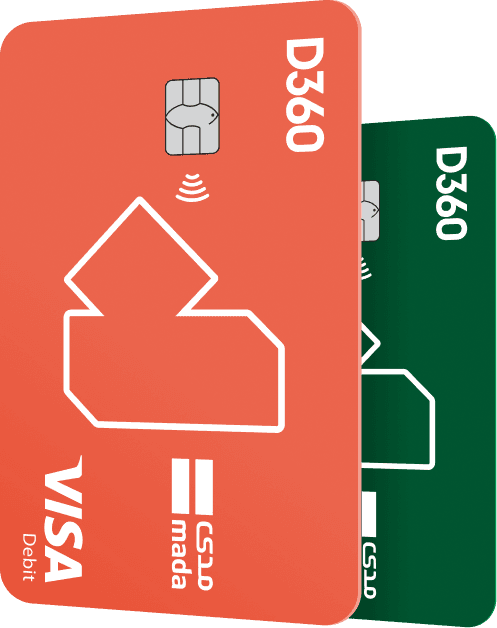
    Samsung In-App provisioning via D360 App:

  1. Log in to the D360 app on your Samsung device.
  2. Go to the card manage screen and tap “Add to Samsung Wallet.”
  3. Complete the authentication using one of the following:
    • Fingerprint or PIN
    • Automated verification call (IVR)
    • One-time password (OTP) sent to your registered mobile number
  4. Accept the Terms & Conditions.
  5. Your card will be added and ready to use.

Terms & Conditions

  • Requires eligible Samsung device and OS version.
  • To use Samsung Pay with your D360 Bank debit card, your device must support tap-to-pay (NFC).
  • Transactions are subject to D360 Bank’s terms and conditions.
  • Availability of transit payments depends on the policies of the local transit authority.
  • Adding your D360 Bank debit card to Samsung Wallet is free of charge.